 Ardi Blocs
User guide
Everything you need to start with Ardi Blocs, step by step.
1. Install and open
- Install Ardi Blocs from the Amazon Appstore on your Fire tablet.
- Tap the Ardi icon to open the app. It works without Internet.
- Landscape orientation is recommended; portrait works too.
2. The home screen
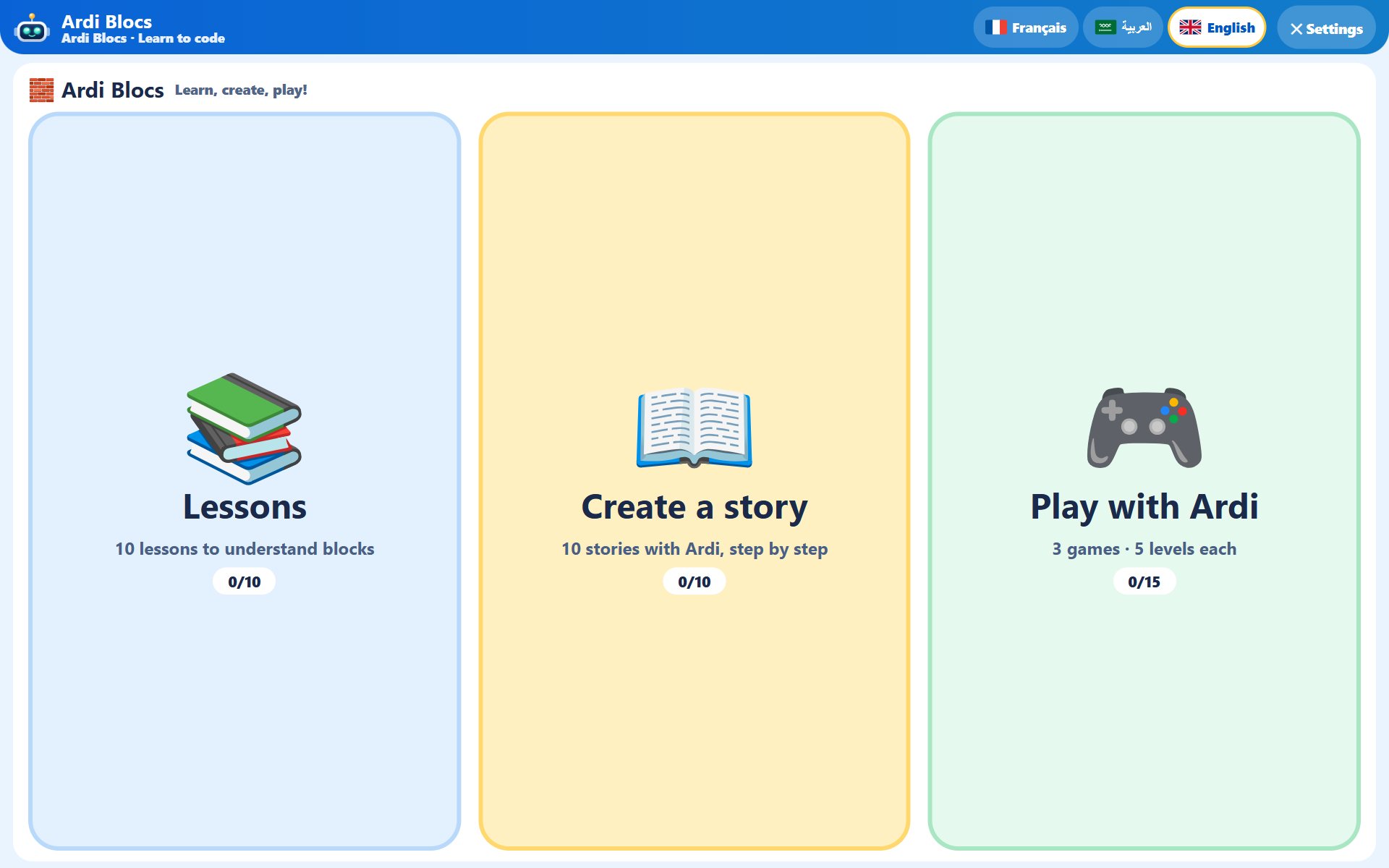
- Three big tiles: Lessons, Create a story and Play with Ardi.
- Top right: choose the language (French, Arabic or English) and open Settings.
- The numbers on each tile show your progress.
3. Lessons
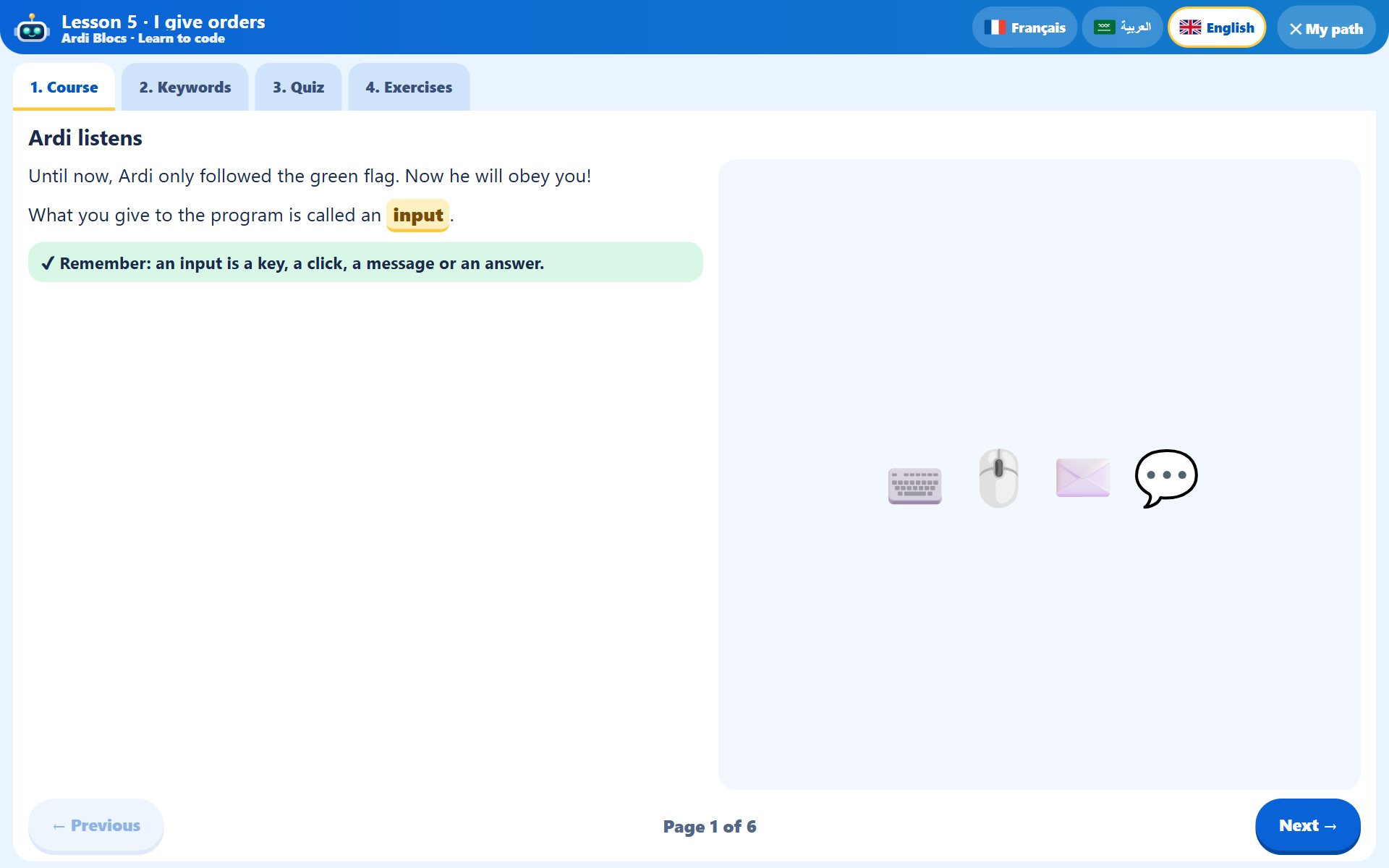
- Open a lesson: a short course, key words with pictures, a 5-question quiz and 3 exercises.
- Move through the four tabs: Course, Key words, Quiz, Exercises.
- Each lesson is advised after the previous one, but you can open any.
4. The block workshop
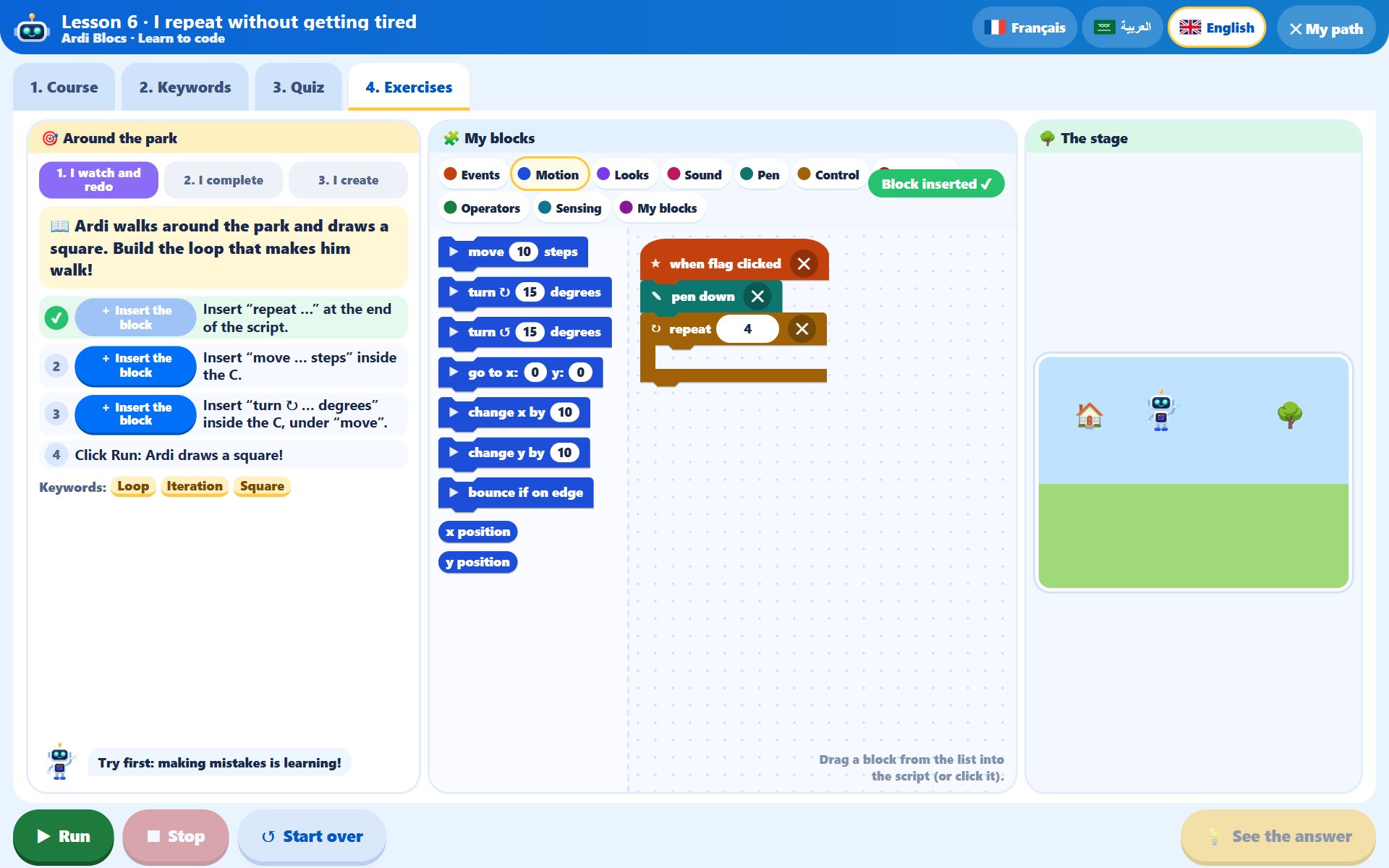
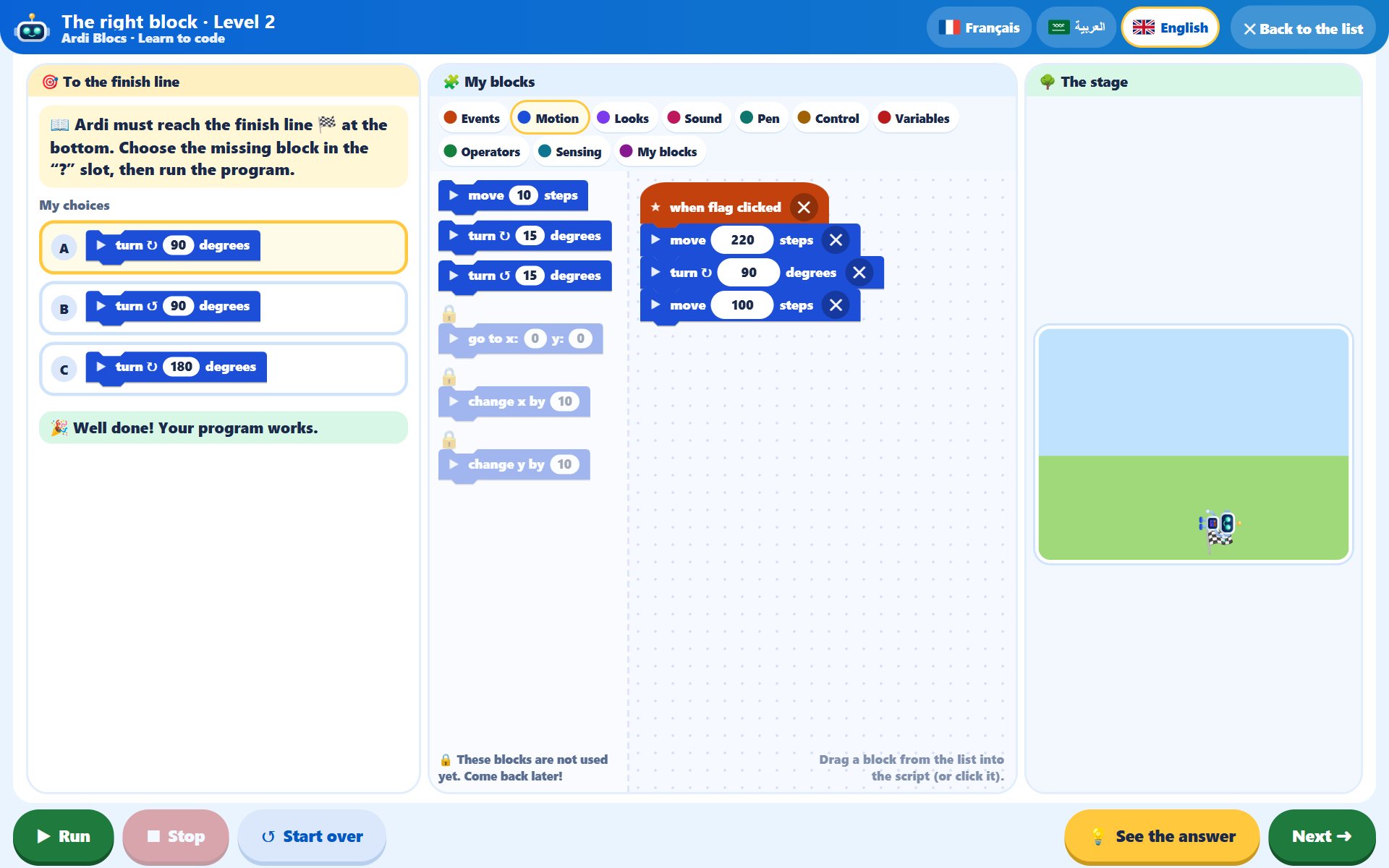
- Drag a block from the list into the script, or tap it, or use “Insert the block”.
- A friendly note explains what the block does. Tap “I understood”.
- Press Run to start, Stop to stop, Start over to try again. “See the answer” shows a solution.
- Change a number by tapping it; the keyboard appears and the field stays visible.
5. Stories
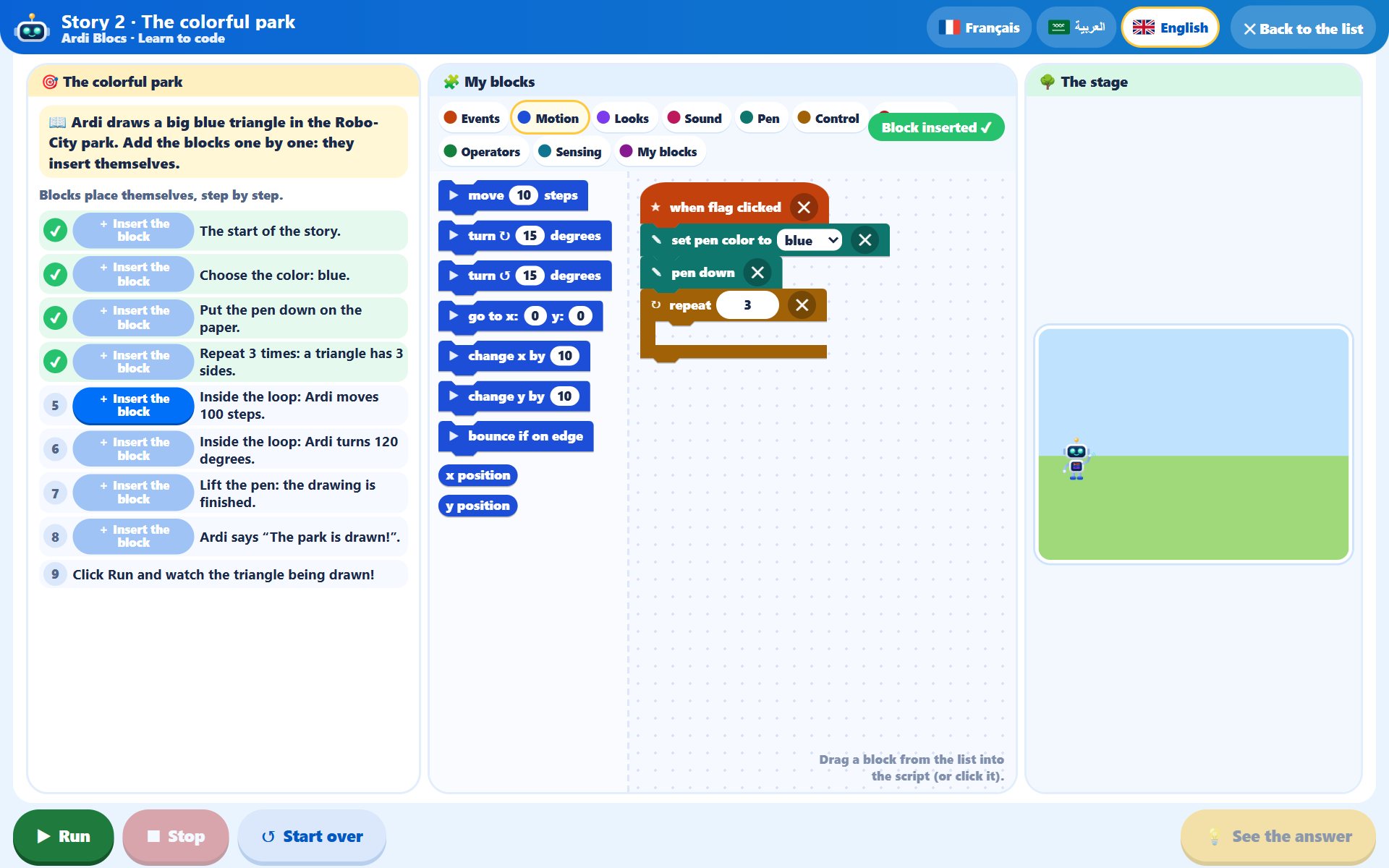
- Pick one of 10 guided stories with Ardi.
- Each step explains its block and places it for you.
- When all steps are done, press Run and watch the story.
6. Games with Ardi
- Three games: “The right block”, “Fix the bug” and “Help Ardi”.
- Each game has 5 levels; the next level opens when you succeed.
- A hint is always available and no score is kept.
7. Settings
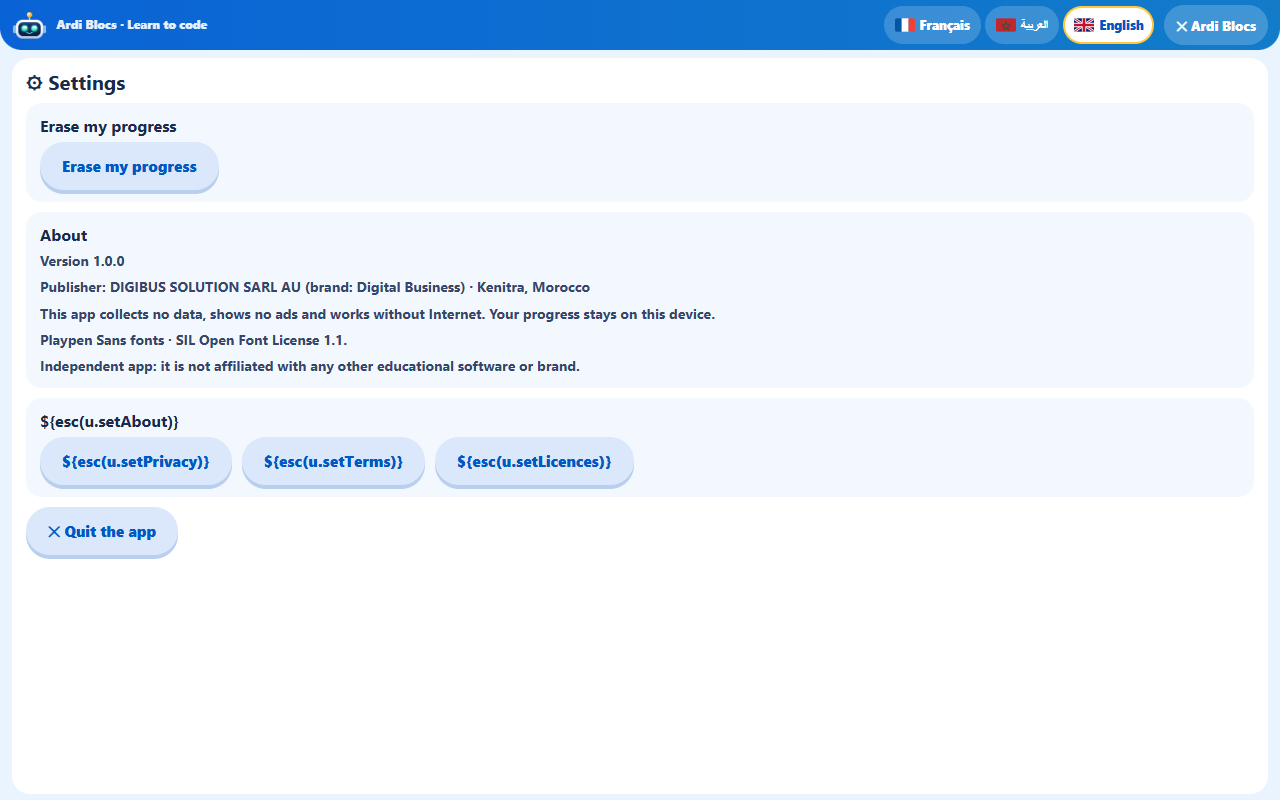
- Change the language at any time.
- “Erase my progress” resets lessons, stories and games (with confirmation).
- Read the privacy policy, the terms and the legal notices.
- Ardi Blocs collects no data and needs no permission.
8. For parents and teachers
- Suitable for children aged 8 to 12, alone or accompanied.
- No ads, no purchases inside the app, no account.
- Ideal for a class: one tablet or screen per group, no network needed.
- For educational use in classes and schools, contact the developer.
9. Problems?
- The app does not open: restart the tablet and try again.
- A block does not go where you want: drag it again under the previous block.
- Anything else: write to contact@digibus.ma.